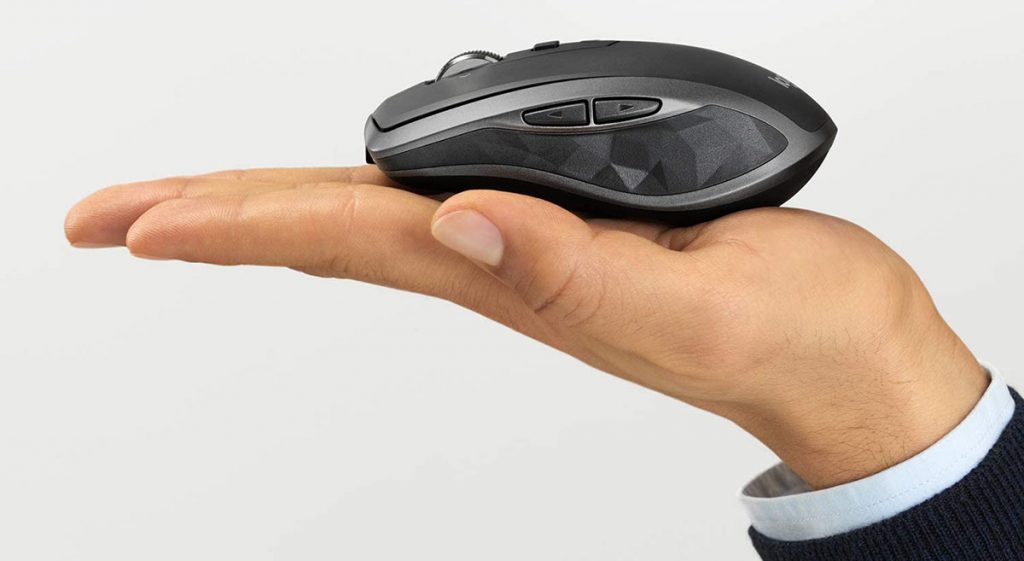
Essential Tips for Cleaning and Maintaining Your Mouse
Keeping your computer mouse clean is essential for maintaining its performance and longevity. Dust, dirt, and oils from your hands can accumulate over time, leading to decreased sensitivity and functionality. Regular cleaning will not only enhance your user experience but also prevent potential damage. Start by unplugging your mouse or removing its batteries if it’s wireless. Use a soft, lint-free cloth slightly dampened with a mixture of water and isopropyl alcohol to gently wipe the surface. Avoid using excess liquid, especially around the buttons and scroll wheel, to prevent moisture from seeping in.
In addition to regular cleaning, it’s important to maintain your mouse by checking its settings and performance. Ensure that you keep your mouse pad clean and free of debris, as a dirty surface can hinder tracking accuracy. If you notice any irregular behavior, such as skipping or jumping, consider checking for software updates or adjusting the sensitivity settings in your operating system. Lastly, for those using gaming mice, weekly maintenance and cleaning can greatly improve gameplay experience by ensuring all features function optimally. Remember, a well-maintained mouse will enhance your productivity and overall computing experience.
If you're looking to enhance your mouse's glide and performance, consider upgrading to high-quality mouse skates. Our guide on the Top 10 Replacement Mouse Skates highlights the best options available, ensuring you find the perfect fit for your gaming or work needs. Whether you need skates for precision or speed, there's a choice on our list for everyone.
Troubleshooting Common Mouse Issues: Squeaks, Jumps, and Lag
Troubleshooting common mouse issues is essential for maintaining a smooth and efficient computing experience. Whether you're dealing with squeaks, jumps, or lag, these problems can significantly hinder your productivity. To resolve these issues, start by inspecting your mouse for any visible signs of wear and tear or debris that may be obstructing its movement. A gentle cleaning, particularly around the sensor and mouse feet, can often alleviate these common issues. Additionally, ensure that your mouse is properly connected to your device, whether it’s via a wireless connection or a USB port.
If you've addressed the physical condition of your mouse yet still experience persistent lag or jittery movements, consider updating your mouse drivers. Outdated drivers can lead to performance hiccups and other mouse issues. To do this, navigate to your device manufacturer's website and download the latest drivers for your specific mouse model. Furthermore, adjusting the mouse settings in your control panel can provide a quick fix for sensitivity problems. A little troubleshooting can go a long way in restoring your mouse functionality and enhancing your overall usability.
How Often Should You Service Your Mouse for Optimal Performance?
Maintaining your computer hardware is essential for optimal performance, and your mouse is no exception. How often should you service your mouse? Generally, it is recommended to clean your mouse every few weeks, particularly if you use it frequently. Dust, dirt, and grime can accumulate over time, affecting its precision and responsiveness. For heavy gamers or regular users, consider cleaning it monthly to ensure seamless operation. Here’s a quick guide for regular maintenance:
- Disconnect the mouse from your computer.
- Wipe the exterior with a microfiber cloth.
- Use compressed air to blow out dirt from the sensor and crevices.
- If it’s a wired mouse, check for damaged cables.
In addition to physical cleaning, it's crucial to keep your mouse's software updated for optimal performance. Check regularly for driver updates from the manufacturer, as new updates can enhance functionality, improve responsiveness, and fix bugs. If you notice issues such as lagging or unresponsiveness, it may be time for a more thorough inspection or even calibration. Listen to your device; if it feels off, that’s a sign you might need to service it sooner than usual. Remember, How often should you service your mouse can change based on your usage patterns, so be proactive about its care.